How to use Ernesto
A screenshot, a copied paragraph, a link — in whatever state you find it. You don't need to clean it up first. Ernesto does that before he reads.
How to add content
There is one box and one button. Drop a screenshot into it, paste a copied text, or paste a link — or all three at once. Then Send to Ernesto.
Screenshot
One screenshot or several — a cut-off comment or a full article, page by page. Ernesto reads it as one piece either way.
You send
Ernesto replies
Copied text
Ernesto removes the menus, the ads and the noise — and reads the article.
You send
Ernesto replies
Link
Ernesto opens it, reads the page and skips everything around the text.
You send
Ernesto replies
How to install the app
Ernesto works in the browser, but a browser is not where you keep things. The app is simply the comfortable way to use him: an icon on your phone or desktop, one tap to the send box, no tabs, no address bar, no typing the address again.
Ernesto offers a PWA app (a PWA is a normal website that your phone or computer lets you keep as an app — same icon, same window, same behaviour as a store app. There is nothing to download, nothing to trust beyond the site you already use, it takes a few seconds and you remove it like any other icon).
Android
- 1.Open geternesto.com in Chrome.
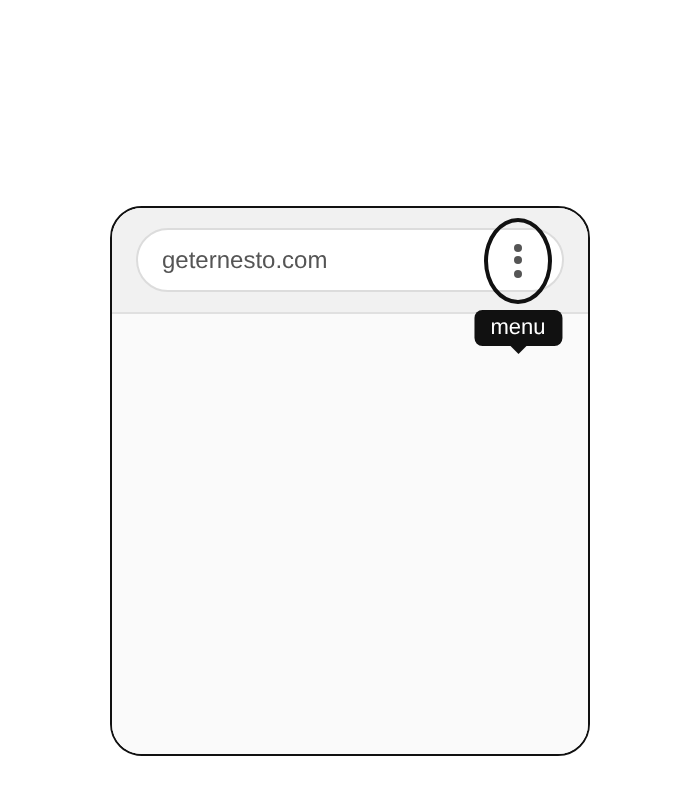
- 2.Tap the three dots in the top right.
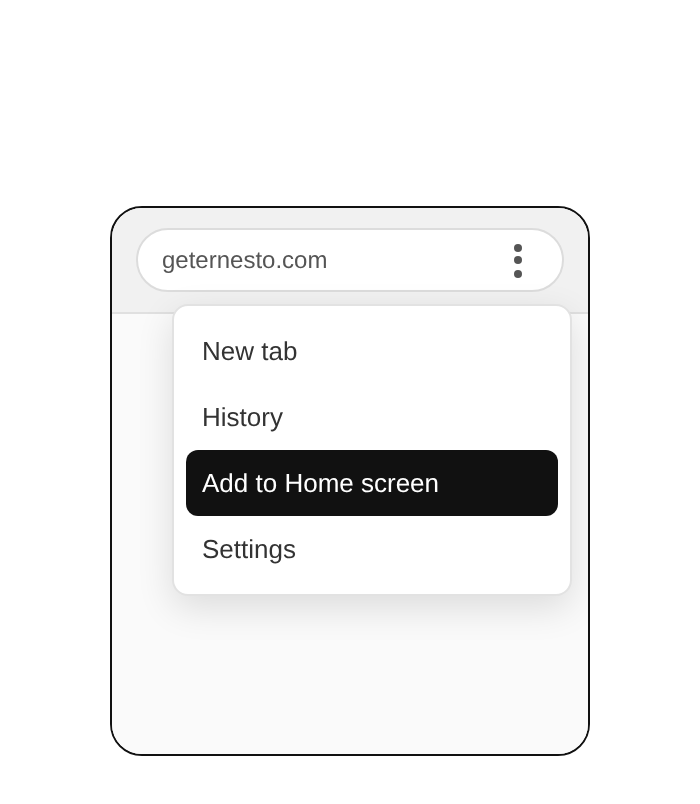
- 3.Choose Install app, or Add to Home screen.
- 4.Tap Install.
iOS (iPhone and iPad)
- 1.Open geternesto.com in Safari.
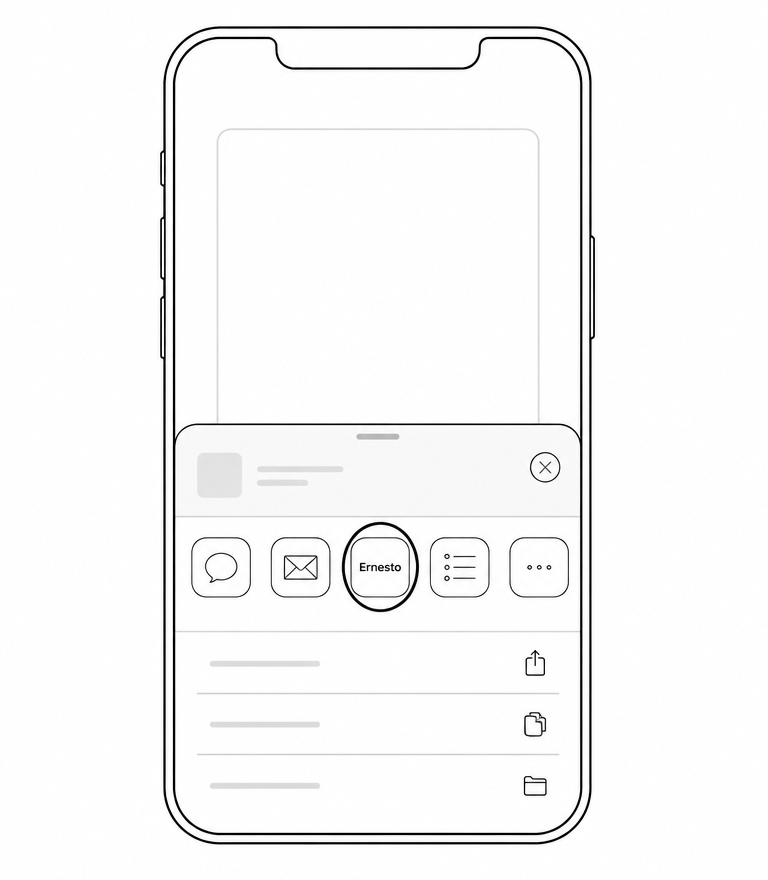
- 2.Tap the Share button at the bottom of the screen.
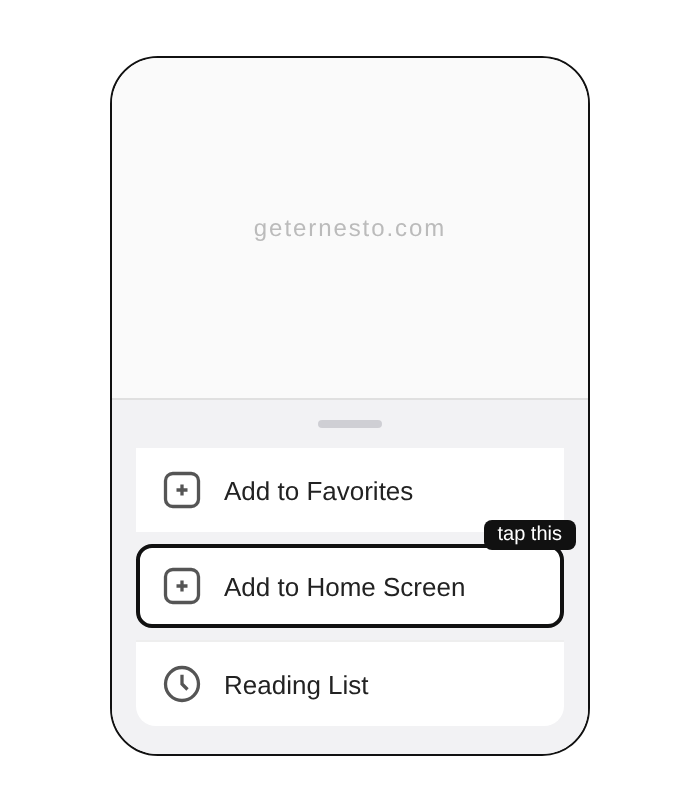
- 3.Choose Add to Home Screen.
- 4.Tap Add. Ernesto sits next to your other apps.
Windows and macOS
- 1.Open geternesto.com in Chrome, Edge or Safari.
- 2.In Chrome or Edge, click the install icon in the address bar, on the right. In Safari on a Mac, choose File, then Add to Dock.
- 3.Confirm. Ernesto gets his own window, his own icon and no address bar.
Once it is installed, the Get the app link disappears from the menu.
How to share faster
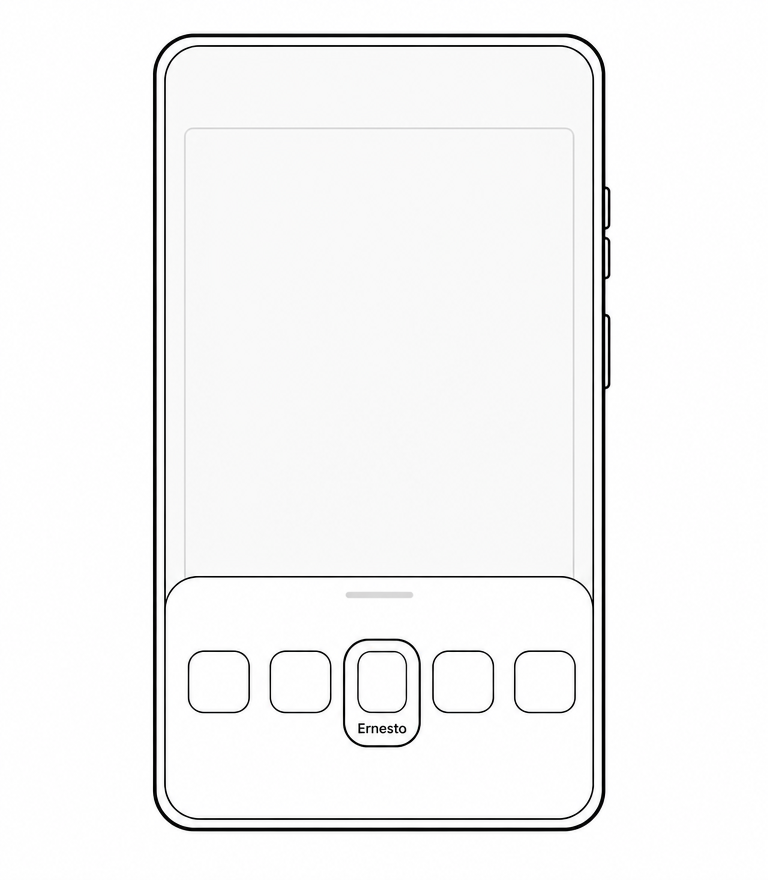
You don't have to open Ernesto to send him something. On a phone or a computer, use the Share button in any app — a browser, your e-mail, the photo gallery — and pick Ernesto from the list. Whatever you shared is on its way. You see a single black screen that says “Sent to Ernesto." and you're back where you were.
You can share a link, a copied piece of text, a screenshot, or a photo from your gallery. Several at once is fine — they all go in as one send.
Sharing is faster than opening the app and pasting, because the app stays closed — Ernesto just picks it up in the background and writes back when he's done.
The one condition: the app has to be installed first (see above). Until it is, Ernesto won't appear in the share list.
How to handle too many letters
One Gmail filter keeps them tidy: click the filter icon in the Gmail search bar, put ernesto@getErnesto.com in the "From" field, choose "Create filter", then "Apply label" (create one called Ernesto) and, if you like, "Skip the Inbox". Every letter lands in its own folder, ready when you are.
If that is still too much, you can switch the letters off completely in Account. Ernesto keeps reading and everything waits for you in Collected.
How to customize Ernesto
Everything you can change lives on one page: Account.
- The language Ernesto writes in
- Pick the language of his letters and of everything he writes in Collected. You can send him material in any language — he always answers in the one you chose.
- E-mails on or off
- By default Ernesto e-mails you every time he finishes reading. Turn “Send me e-mails” off and he goes quiet — he still reads everything you send, and every finished piece appears in Collected as usual. You can turn it back on at any time.
- Your e-mail address
- Shown on the page — it is the address he writes to and the one you sign in with.
- Deleting your account
- Removes your account with everything in it: findings, screenshots, notes and tags. There is no undo.